Recording
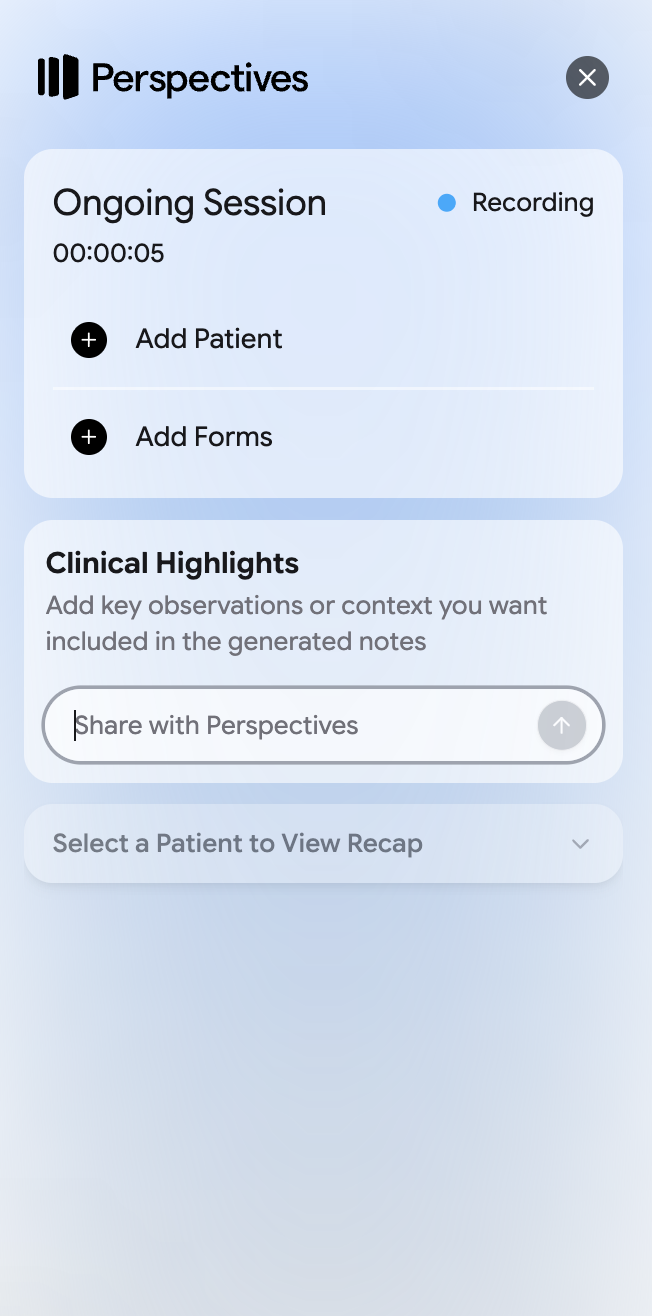
- For longer notes and assessments, you can record the encounter and use it to fill in the form, note, or assessment directly in the EMR.
- Ask the patient for consent before recording. See the Consent guide.
 Learn the basics
Step 1 of 3
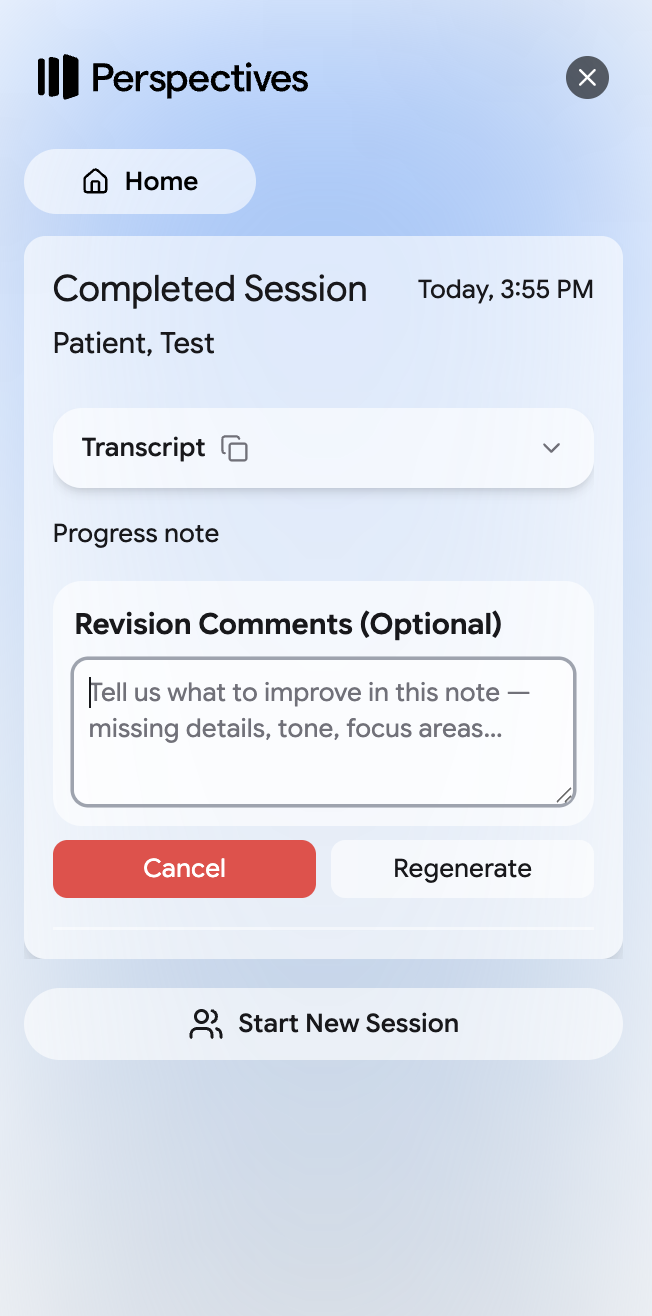
You can add optional comments to control what Perspectives includes or emphasizes in a note.
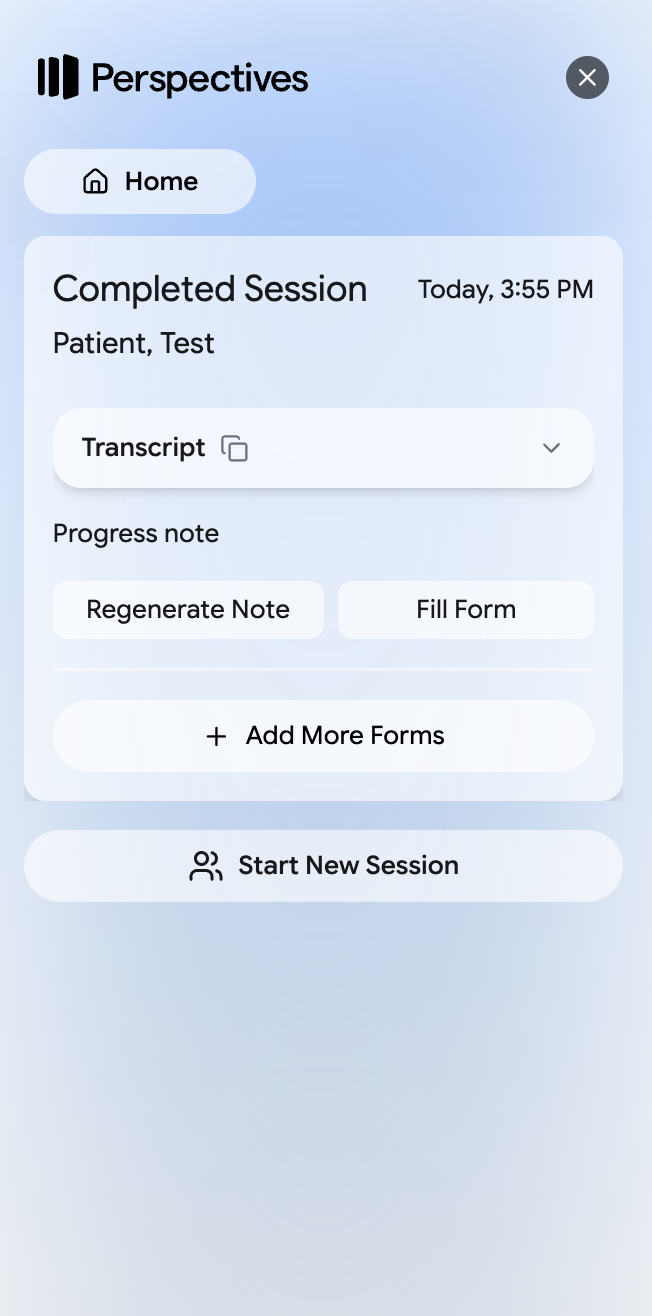
If you do not like how Perspectives wrote the note, click Regenerate Note.
Step 1 of 3
From the Perspectives home screen, select Groups. Group notes can only be dictated.
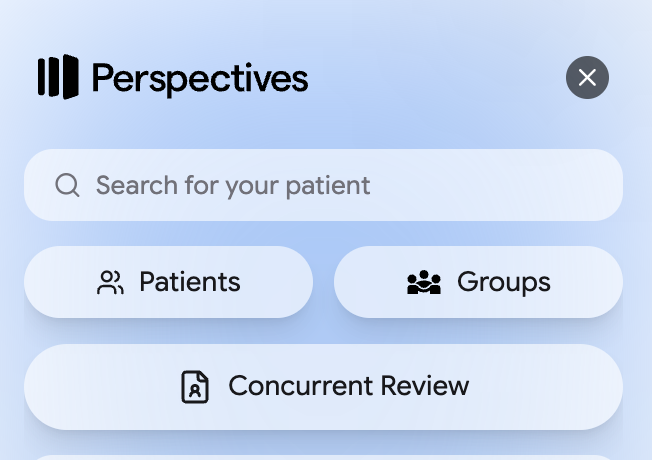
Choose the group you are documenting.
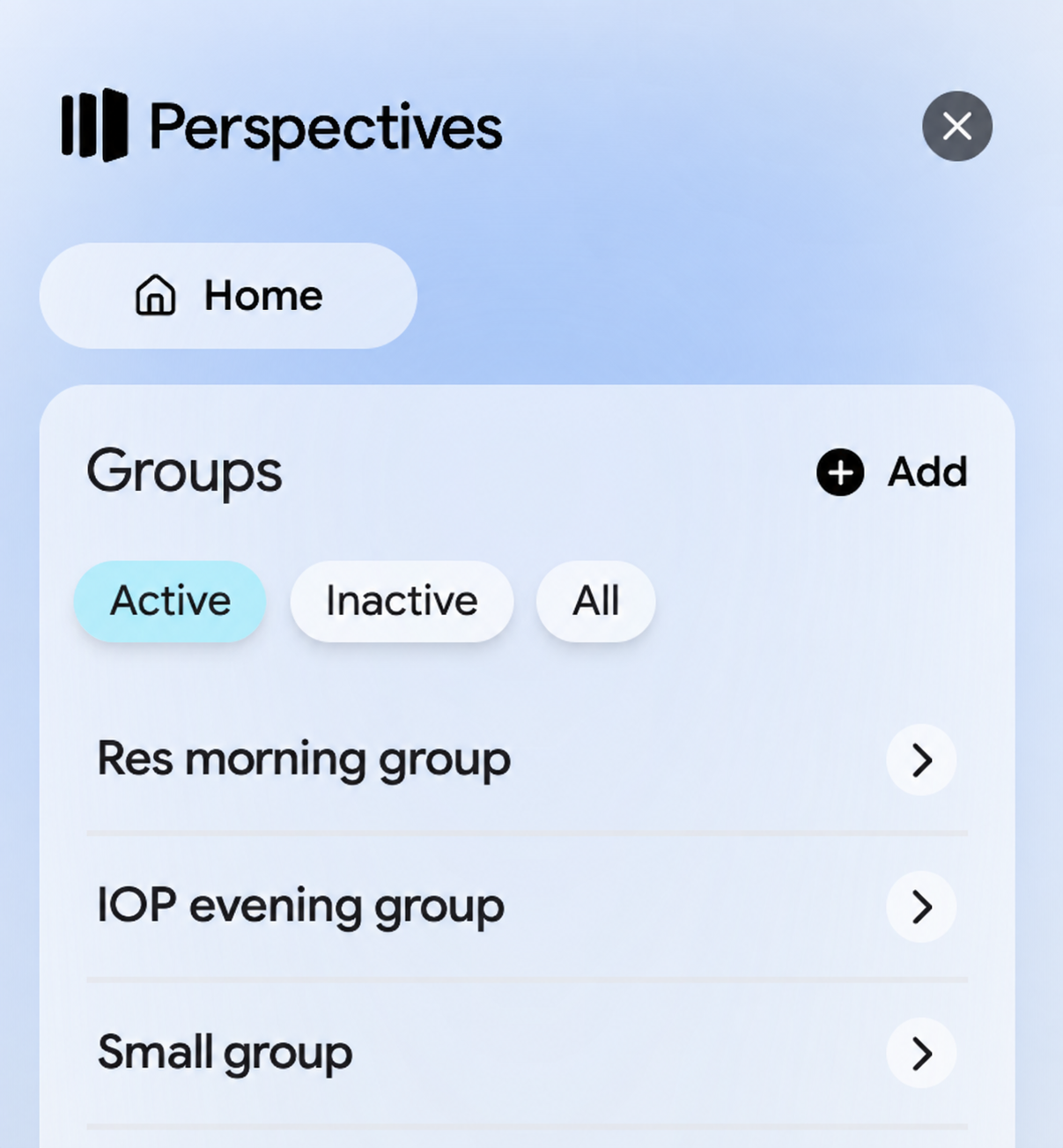
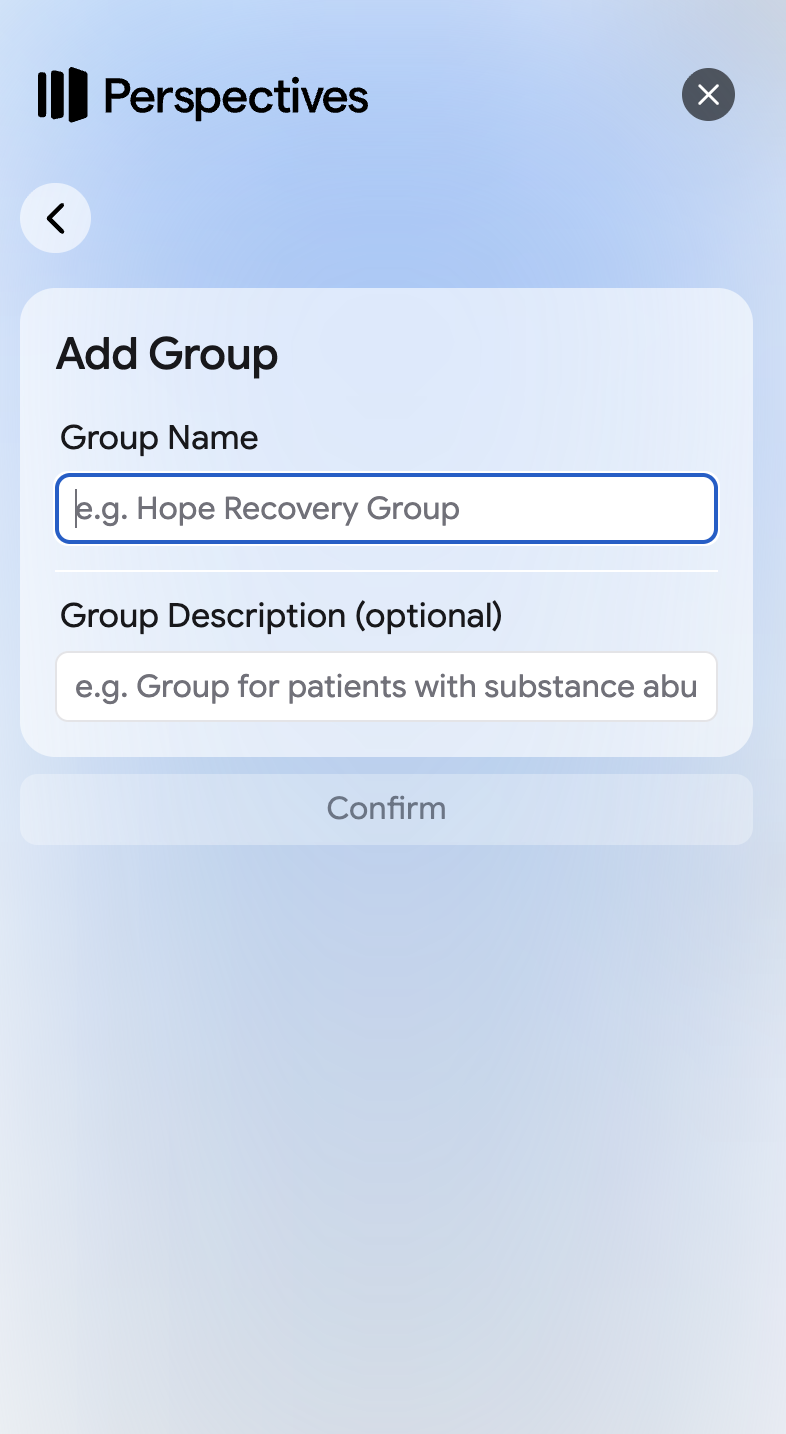
If the group has not been created yet, select Add. Enter a group name and description, then add the people who belong in the group.
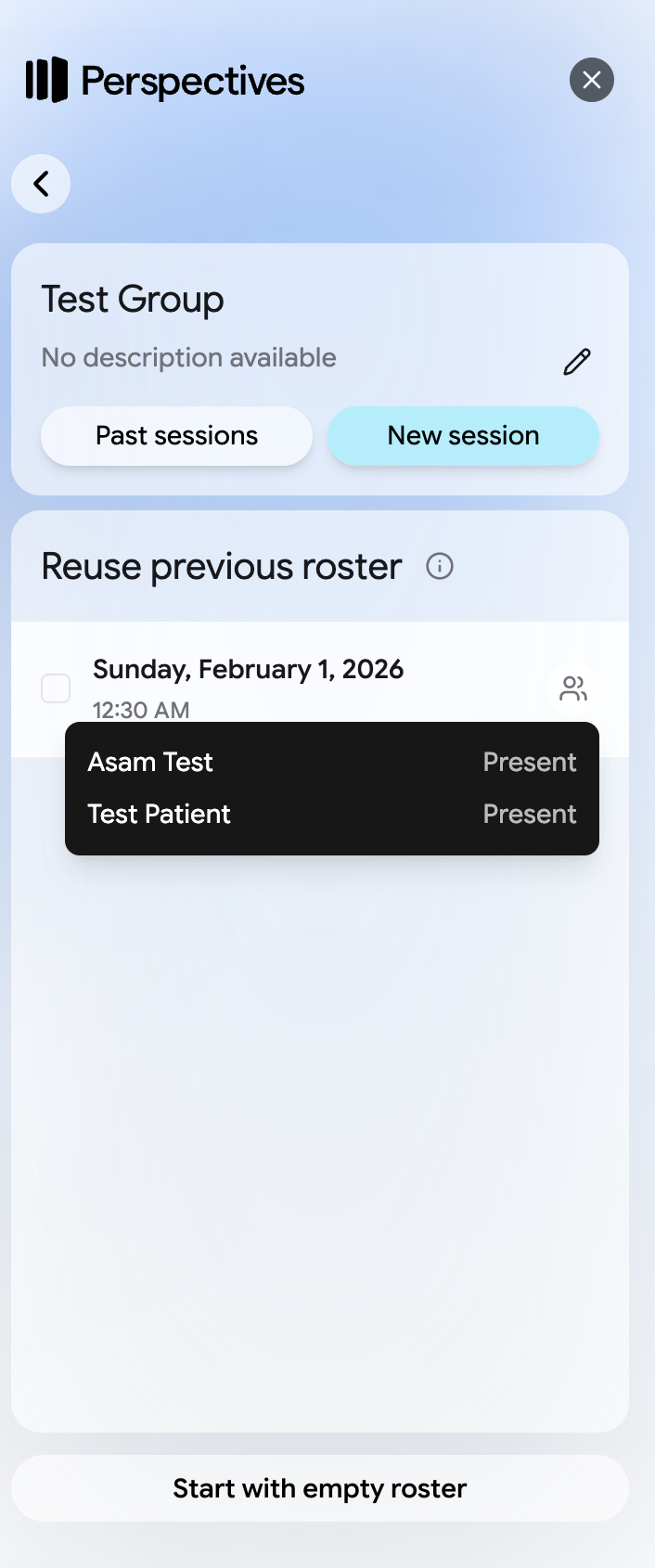
Open the group and select New session. Review and reuse the roster from a previous session, or start with an empty roster.
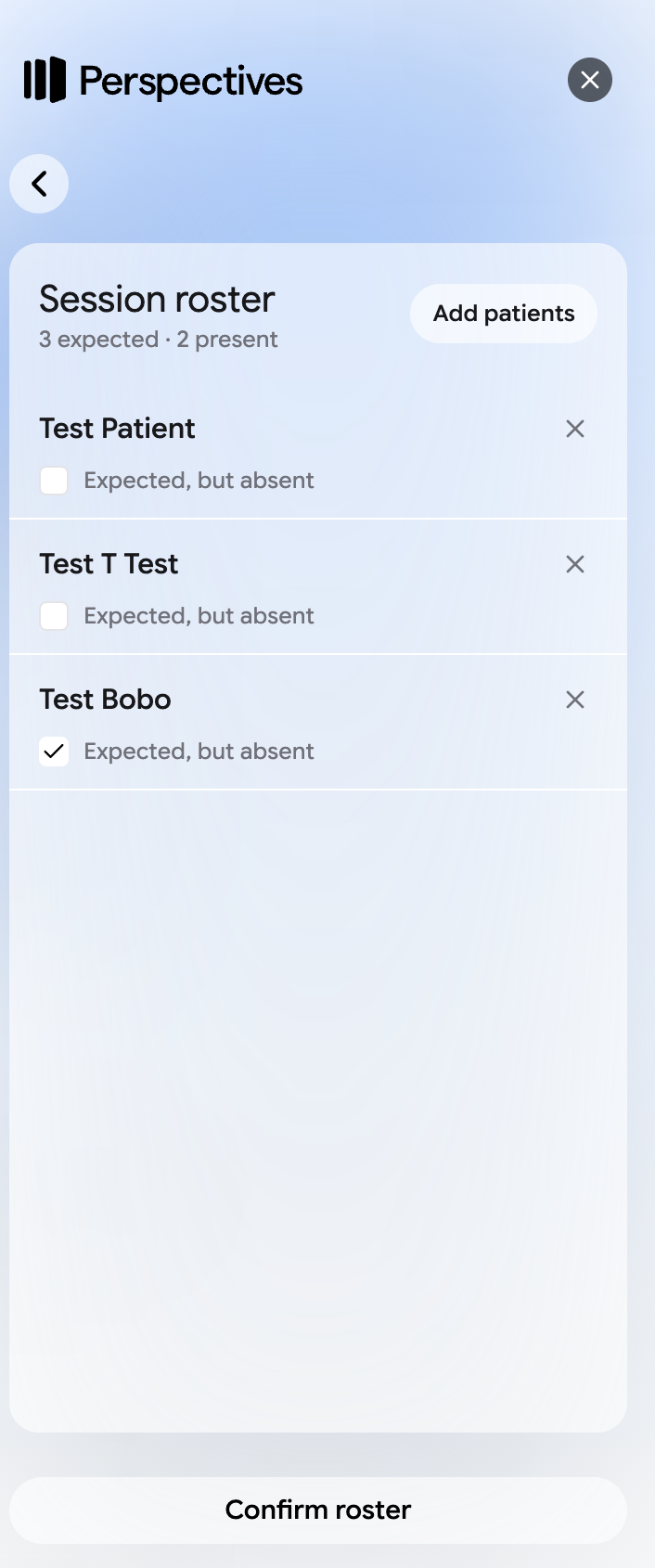
Add or remove participants and mark attendance. Select Add patients to add someone or × to remove them. When finished, select Confirm roster.
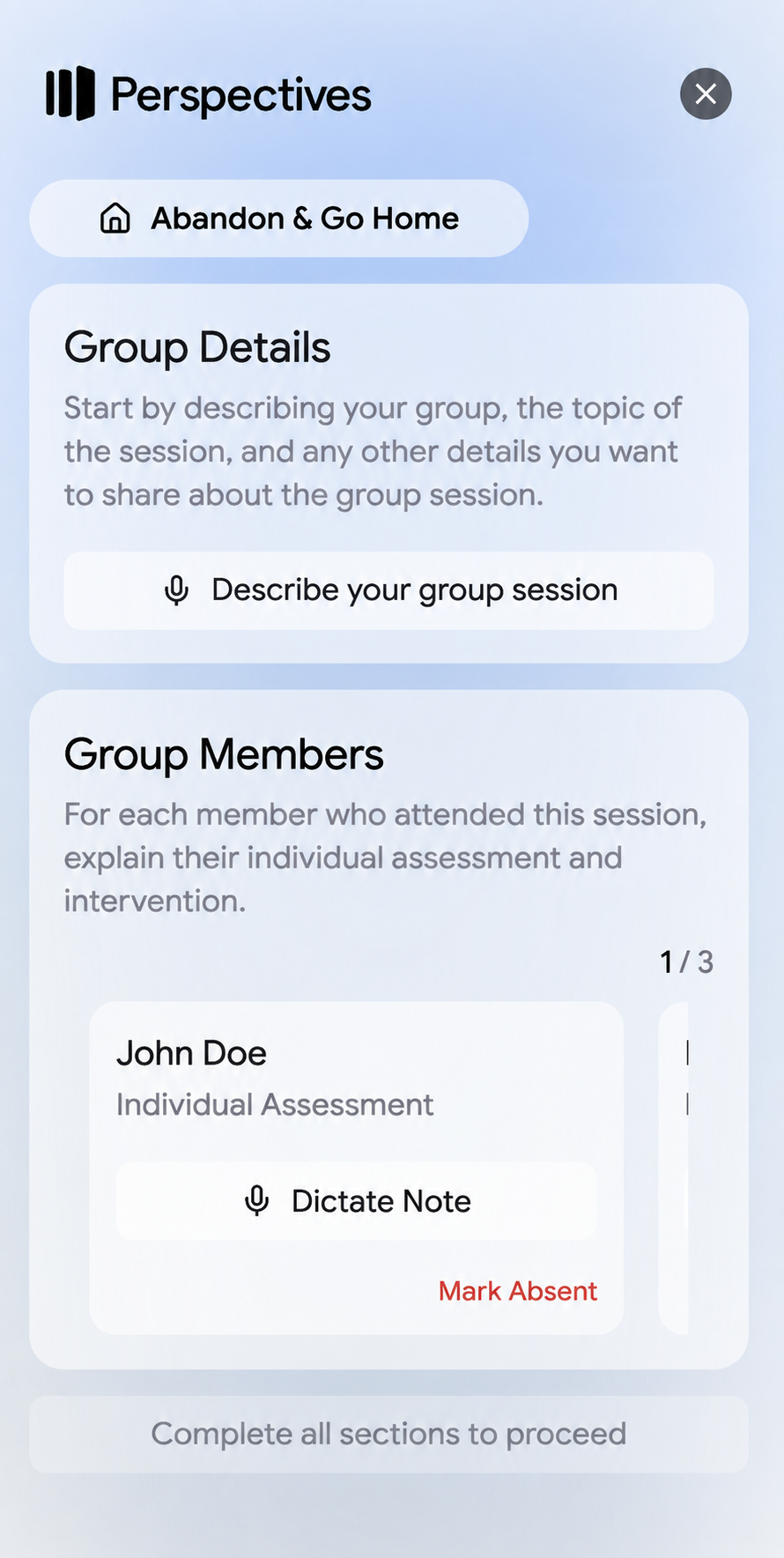
Describe the group session, then dictate an individual assessment and intervention for each member. Select Mark Absent for anyone who did not attend.
Once you are done, Perspectives will generate a group details note as well as a group note for each individual.
Step 1 of 6
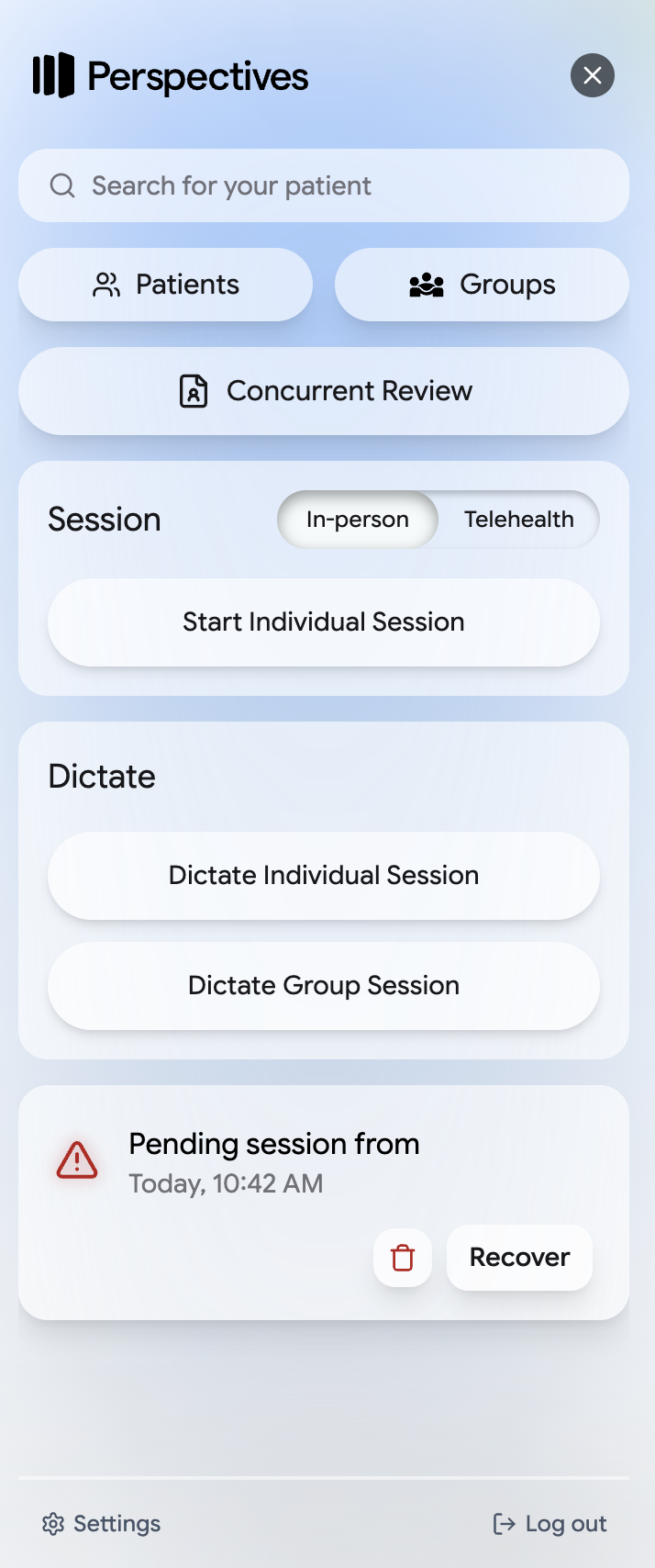
Perspectives will save sessions when something fails, like if your computer dies or if you lose internet in the middle of a session. These are incomplete sessions.
Sessions you exit before adding a patient or note type are unconfigured sessions.
Both appear under Pending sessions on the Perspectives home page. Select Recover to return to one.
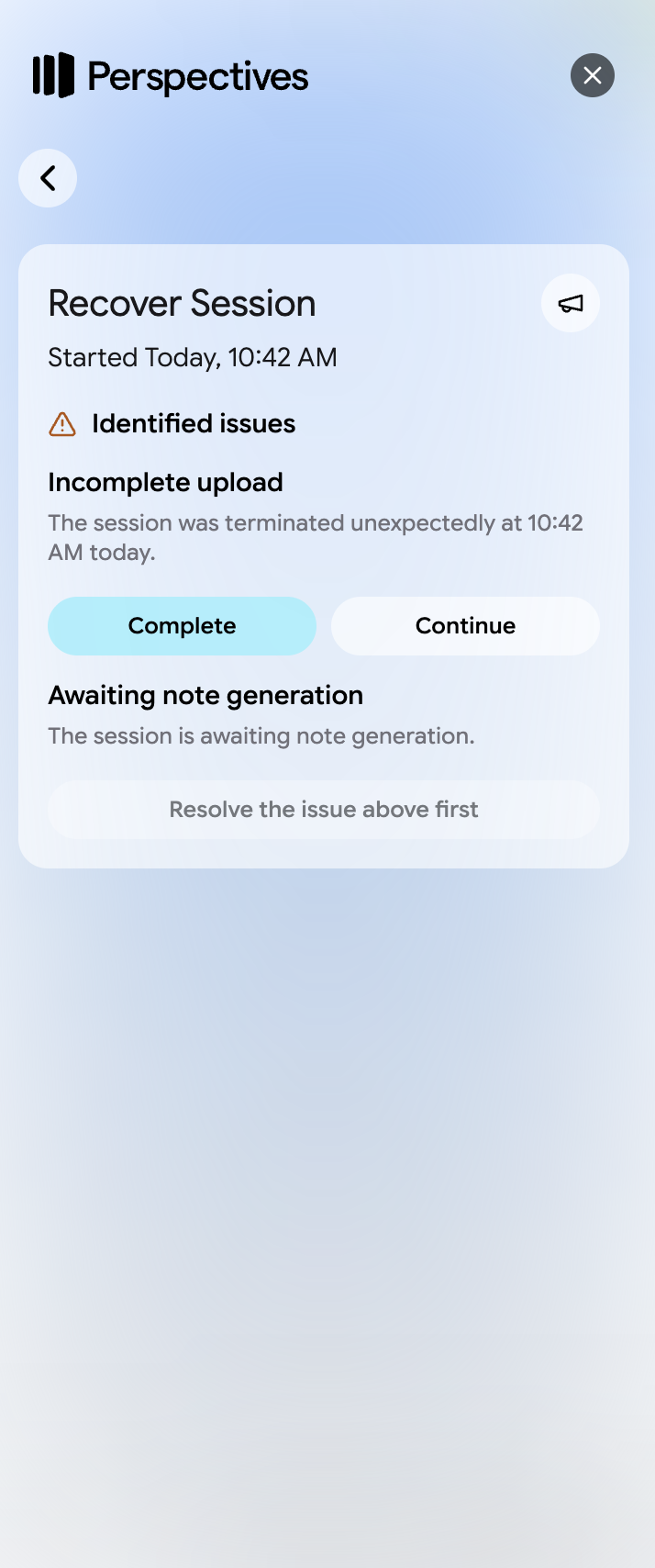
If you recover an incomplete session, Perspectives will show you options for resolving the interrupted recording:
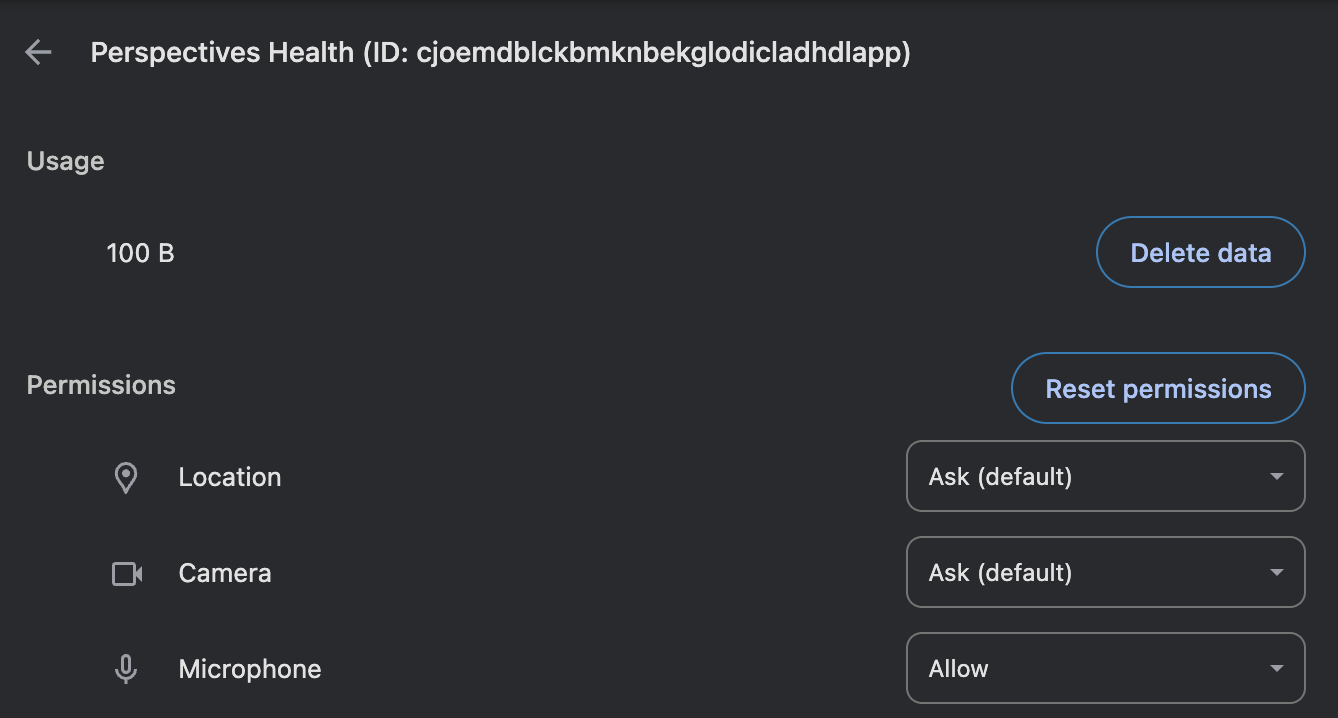
You may not have the right microphone set up in Chrome. You can use these links to get to the microphone settings—click the buttons below to copy the links and then paste them into your address bar.

Select Forgot password? on the Perspectives login screen and follow the instructions sent to your email.
Chrome should detect new versions of the Perspectives extension and load them when you quit and reopen Chrome. If you’re having trouble with an older version or want the latest features sooner, you can update the extension manually.